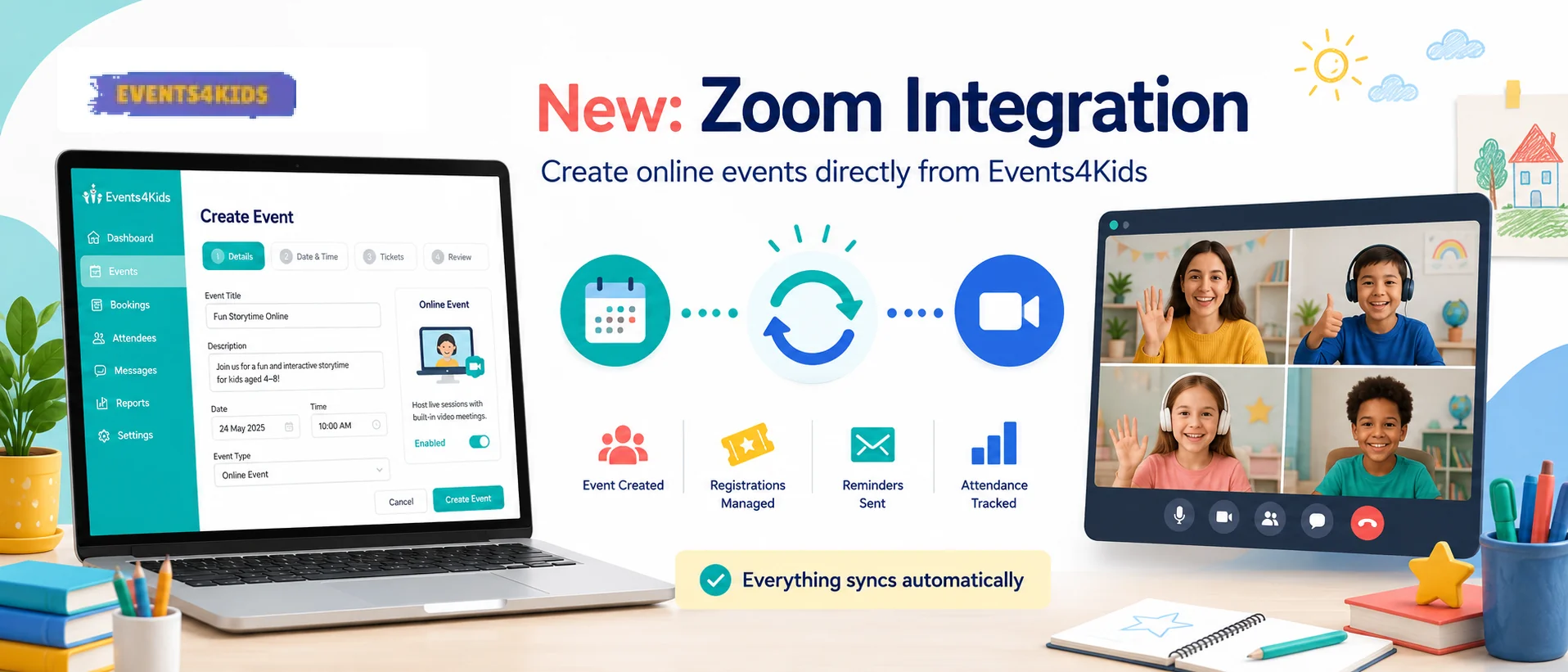
Using the Events4Kids Integration for Zoom
This guide explains how event organizers (vendors) can connect their Zoom account, create Zoom meetings for events, and safely disconnect the Events4Kids App for Zoom when they no longer need it.
1. Overview
The Events4Kids integration for Zoom lets you create and manage Zoom meetings directly from your events in WordPress. Once you connect your Zoom account, new and updated events can automatically create or update matching Zoom meetings, and attendee-facing event pages will show the correct Zoom join links.
What you can do
- Connect your personal or work Zoom account using secure OAuth 2.0.
- Create a Zoom meeting when you create a new event.
- Update meeting details when you update the event (time, topic, etc.).
- Cancel/delete the Zoom meeting when you cancel the event.
What you need
- A valid Zoom account with permission to install the app.
- An Events4Kids Event Leader account.
- A supported browser with cookies enabled.
All Zoom information is stored securely on the server and used only to create, update or delete meetings on your behalf, as described in this guide.
2. Adding and Connecting the Events4Kids App for Zoom
Follow these steps the first time you want to use Zoom with your events. You only need to connect your Zoom account once per website user account.
-
Sign in to Events4Kids.
Log in to your Events4Kids account and navigate to your Events Dashboard. -
Open the Zoom integration page.
Look for the “Zoom” tab. Click it to open your Zoom connection settings. -
Click “Connect Zoom”.
On the Zoom settings screen, click the button labelled “Connect Zoom”. You will be redirected to the official Zoom authorization page. -
Authorize the app in Zoom.
If prompted, sign in to your Zoom account. Zoom will show you what permissions the app is requesting (for example: view/manage meetings). Review the details and click Allow to grant access. -
Return to Events4Kids.
After authorizing, Zoom will redirect you back to events4kids.co.uk. The integration will securely store your access token and show a confirmation message such as “Zoom connected successfully”.
3. Creating Events with Zoom Meetings
After your Zoom account is connected, you can attach a Zoom meeting to new or existing events.
3.1 Create a new event with Zoom
-
Create a new event.
In your Events Dashboard, go to the Events screen and click Add New Event. -
Enter basic event details.
Add the event title, description, date and time as usual. -
Enable Zoom for this event.
In the event configuration panel, look for the Location setting and choose from 'Virtual' or 'Hybrid'. -
Select the Online Platform.
Under that, choose Zoom as the Online Platform. -
Review Zoom-specific options (if available).
Depending on your configuration, you may see options like:- Meeting host (your connected Zoom user).
- Meeting duration.
- Waiting room / join before host.
- Mute participants on entry.
-
Save or publish the event.
Click Publish (or Update). The integration will:- Create a new Zoom meeting via the Zoom REST API.
- Store the Zoom meeting ID and join URL with your event.
- Display the Zoom join information on the event page for attendees (if configured).
3.2 Editing an event and updating the meeting
- Open an existing event that already has a Zoom meeting attached.
- Change the date, time, or other supported options.
- Click Update. The integration will send an
updaterequest to Zoom so the linked meeting reflects your changes.
3.3 Cancelling an event and deleting the Zoom meeting
- Open the event you want to cancel.
- Either set its status to “Cancelled”/“Draft” or use the Delete option, according to your workflow.
-
When configured, the integration will send a
deleterequest to Zoom to remove the associated meeting so participants can no longer join.
4. How Attendees Join the Zoom Meeting
Your attendees do not need to connect their own Zoom accounts to use this integration. They simply join the Zoom meeting that you created for the event.
- When you publish an event with Zoom enabled, the event page will show a “Join Zoom” button or link (subject to your theme and settings).
- You can include the Zoom join link in reminder emails or order confirmation messages, depending on your event configuration.
- When the attendee clicks the link, Zoom will open in the Zoom desktop client, mobile app, or in a browser, based on the attendee’s device and Zoom configuration.
5. Disconnecting or Removing the Events4Kids App for Zoom
You can disconnect your Zoom account at any time from either the Events4Kids website or the Zoom Marketplace. Disconnecting stops the integration from creating or managing meetings on your behalf.
5.1 Disconnect from your website
- Go back to the Zoom or Vendor Zoom settings page on your website.
- Click Disconnect or Remove connection.
-
Confirm that you want to revoke access. The integration will:
- Delete your stored Zoom access.
- Stop creating new Zoom meetings for future events.
Existing Zoom meetings you already created will remain in your Zoom account unless you delete them directly from Zoom or by editing the corresponding events before disconnecting.
5.2 Remove the app from the Zoom Marketplace
- Sign in to the Zoom App Marketplace.
- Go to Manage > Installed Apps.
- Find the app by name (as listed on the Zoom Marketplace) and click it.
- Click Uninstall or Remove, and follow the prompts to confirm.
Removing the app from the Zoom Marketplace also revokes any remaining access tokens. If you later want to use the integration again, you will need to reinstall and reconnect the app.
6. What Data Is Used
The integration only uses the minimum Zoom data necessary to create and manage meetings for your events.
| Data | Purpose |
|---|---|
| Zoom user ID and email | Identify which Zoom user is hosting the meeting. |
| Access and refresh tokens | Securely authenticate with Zoom on your behalf to create/update/delete meetings. |
| Meeting ID and join URL | Link the Zoom meeting to the corresponding event and show the join link to attendees. |
This documentation describes how Event Leaders should add, use and remove the Events4Kids App for Zoom from within the website. It is provided to support and help users operate the integration safely and correctly.